


QR Code Scanner
3.480.00 Reviews
App Specs
- Version
- 2.3.0.0
- Updated On
- License
- Free
- Downloads
- 1,000,000+
- Developer
- Smart Choices Limited
- Categories
- Tools
- Platform
- Android
Screenshots
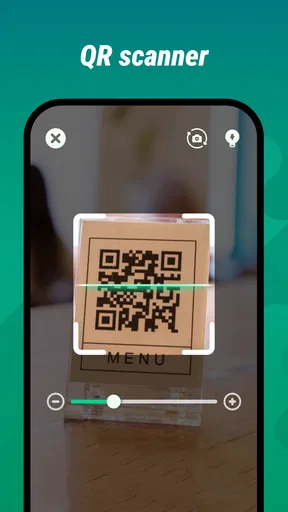
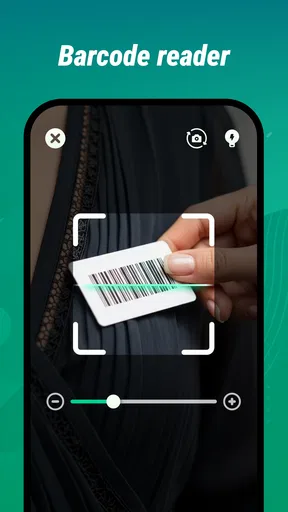
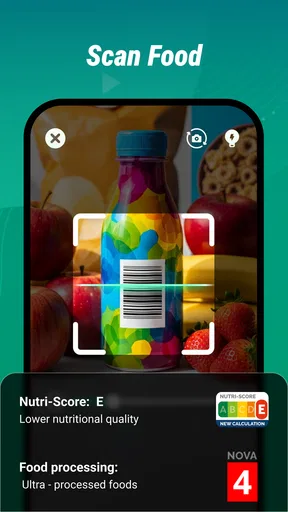
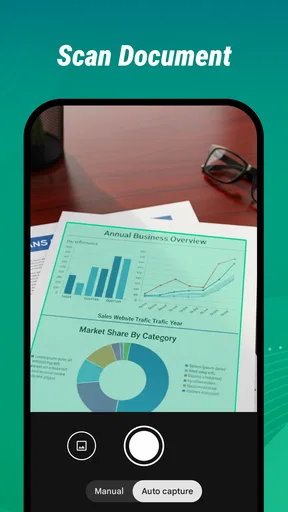
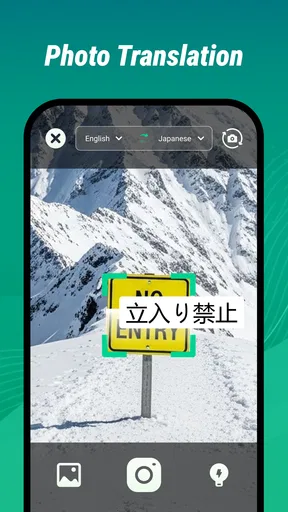
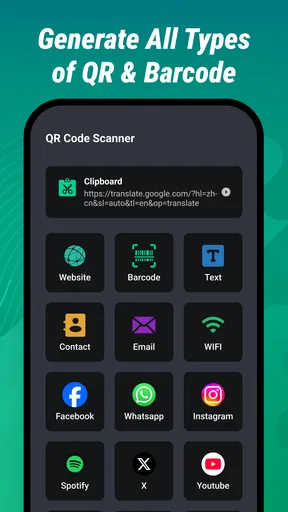
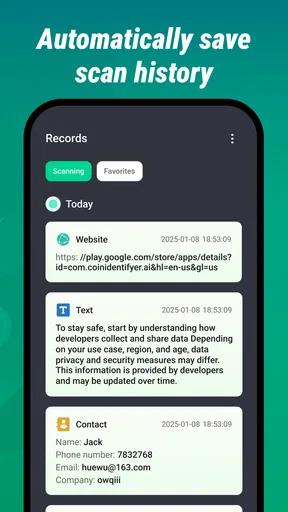
 Analysis by AppCompare
I judge a QR scanner less by how many codes it claims to handle and more by whether it helps me get from a printed square to the right information without fuss. QR Code Scanner is a free tools app from Smart Choices Limited, aimed at that quick, everyday job. Its appeal is easy to understand: open a scanner when a code is in front of you, point the phone, and use the result. That simplicity can be useful, but it also makes clarity, comfortable handling, and safe decision-making especially important.
Getting around the scanning task
The app’s purpose is immediately legible. It is for scanning QR codes and barcodes, rather than a broad utility suite that asks me to learn a collection of unrelated tools. If I only need to identify a code on a package, a ticket, or a notice, that narrow focus is a strength: there is little conceptual overhead before I can begin.
For a reader deciding whether to install it, the practical question is whether a dedicated scanner is worth keeping when many phones already offer code scanning through the camera. My view is that this app makes sense as a separate, direct route for people who regularly scan different kinds of codes or prefer to keep that action apart from ordinary photography. If the built-in camera already recognizes codes reliably and presents results clearly, it may be all you need.
The interface matters beyond visual polish. A scanner should make the main task easy to find and the result easy to interpret, particularly for someone who does not use QR codes every day. I would approach unfamiliar results deliberately: check what the scan has identified before choosing to open or act on it. A code can lead somewhere useful, but the convenience of scanning should not replace the ordinary caution I use with an unknown address or product information.
The app has an average rating of 3.4 from around 13,000 ratings, alongside 80 written reviews. That mixed reception is a reason to set expectations realistically rather than assume every scan will feel effortless. It has passed one million installs, so it is not an obscure experiment, but popularity alone cannot tell me whether its presentation suits my habits or needs.
Useful habits for reading results
One small workflow makes scanning more manageable: hold the phone steady, give the code enough room in the camera view, and pause to read the detected result before proceeding. This is especially useful when a code is printed on reflective packaging, placed behind glass, or surrounded by other visual clutter. Rather than waving the phone around, I would adjust my position and lighting first; that reduces frustration without assuming the app has special image controls.
I also find it sensible to treat a scan as a starting point, not a decision. If I am scanning a menu or a public notice, I can compare the result with the context in front of me. If a code on a parcel or product leads to information I did not expect, I can stop instead of tapping through automatically. That habit is valuable with any scanner and is particularly relevant when the app’s whole purpose is to make opening encoded information quick.
Worth Reading Before You Choose

Baby Panda World Brings Quick Play to Modern Phones, but Its Game Library Feels Busy

ESPN’s Live Game View Makes Following Close Games Easier

QuizzLand Review: A Good Fit for Short Trivia Breaks, Not Every Player

Basketball Stars: Multiplayer Is Fast, but Can It Recover When Matches Go Wrong?

WEBTOON Turns Phone Updates Into a Better Reading Routine

Link to Windows Runs on Shared Habits, Not Social Feeds
Comfort, movement, and sensory needs
Scanning is a physical task as well as a visual one. It usually asks me to hold a phone up, aim it at a small target, and keep it reasonably still. That can be awkward for someone with limited grip, tremor, fatigue, or pain, and the challenge increases when the code is low on a box or high on a sign. In those situations, I would bring the item closer, place it on a stable surface, or ask someone to hold the object rather than forcing an uncomfortable posture.
There is a useful distinction between making an app simple and making it accessible in every context. A focused scanner avoids the learning burden of a complicated tool, but a person who relies on larger text, screen reading, high contrast, or particular interaction settings should check how the app behaves on their own device. I would not assume that a clear scanning purpose automatically means every result screen or control will work equally well for every user.
Lighting and visual conditions can also change the experience. A glossy label may reflect overhead lights; a small code may be difficult to frame; and a dim room can make positioning harder. I get better results by angling the item or phone to reduce glare and moving to a brighter spot when possible. These are practical adjustments, not guarantees, but they often help more than repeatedly tapping the screen or changing apps.
Sound and motion sensitivity deserve a little thought too. People who are easily distracted may prefer to scan in a calmer moment instead of trying to aim while walking through a busy place. For a quick scan at a checkout, I would step aside if the result needs reading, rather than rushing through a screen while people wait. The app’s focused role suits brief tasks, but the environment still determines how comfortable those tasks feel.
Where a dedicated scanner fits
A realistic use case is sorting through a delivery at home. I might scan a code printed on packaging to identify what it is or find related information, then decide whether that result is relevant before acting on it. A separate scanner can make this feel like a deliberate utility task rather than something mixed into taking photos. For occasional use, however, opening the phone’s camera may be quicker if it already detects codes well.
At a shop, a barcode can be useful when I want to identify an item or compare details while browsing. The trade-off is that a scan only helps if the result is readable and relevant to my decision; it does not, by itself, guarantee that the information is complete or current. I would use the scanner as a convenience, not as the sole basis for judging a product.
For frequent scanning, the dedicated-app approach can be easier to remember: open the same tool whenever a code appears, rather than relying on camera behavior that may vary with device settings or habits. For someone who scans only a few times a year, the extra app may add little. The better choice depends less on the category label and more on whether a separate scanning routine genuinely saves effort.
QR Code Scanner is rated for Everyone and is free, which makes trying it a low-commitment option for a broad audience. It was released on May 7, 2025, and version 2.3.0.0 is the current version. It supports Android 7.0 or later. Those details make it easier to judge basic compatibility, but they do not resolve the personal question of whether its controls and results are comfortable for you.
Choosing a scanner for a particular routine
One question I would settle before installing any separate scanner is what I expect to do after the code is read. If I mainly need to open a web address, the phone camera may already cover that job with fewer steps. If I often move between QR codes and barcodes while checking labels, a dedicated tool can make the action easier to remember. Either way, I would try it on a code whose purpose I already know, so I can judge the result screen without the added uncertainty of unfamiliar content.
For a busy everyday example, imagine checking a product label while preparing a shopping list. I would scan it when I have a moment to stop, read what appears, and compare it with the package rather than trying to do all of that while walking through an aisle. This turns scanning into a useful lookup instead of a rushed tap. It also makes clear when the app is not the right solution: if the result needs careful comparison and the screen is hard to read in that setting, taking a photo or checking later may be more practical.
That distinction helps answer whether this is suitable for occasional users. It can be tried without a purchase, but a free install still takes space and adds another icon to manage. If code scanning is rare and the camera already handles it, I would skip the extra app. If scanning is a recurring task and having a dedicated tool reduces the friction of finding the right option, keeping it may be worthwhile.
Limits worth considering before relying on it
The biggest limitation is not a dramatic flaw so much as the nature of a single-purpose scanner: it has to earn its place on the phone. If your default camera already scans QR codes smoothly, installing another tool may create duplication rather than convenience. I would choose this app when I want a dedicated scanning option, not simply because a standalone scanner sounds more capable.
There is also a difference between recognizing a code and making its contents useful. A scan may produce information that still needs interpretation, and the user has to decide what to do next. That extra step can be tiring for someone who needs highly predictable navigation or who has difficulty moving between screens. Before using it for an important task, I would try a familiar code in a relaxed setting and see whether the full path—from aiming to understanding the result—works comfortably.
For people with significant motor or visual access needs, a different option may be better if it offers controls or output formats that match their setup. A phone’s built-in camera may integrate more naturally with device accessibility tools for some users; for others, a dedicated app may be simpler. I would test the actual experience rather than assume one approach is universally superior. The same goes for scanning while on the move: stopping and stabilizing the phone is often the safer, less stressful choice.
Another trade-off is how much trust to place in the material a scan returns. The scanner can help reveal encoded content, but it cannot decide whether that content is appropriate for the task or whether a product claim should influence a purchase. I would use the source and surrounding context as checks, especially when the scan is unexpected. For anything important, a second route—such as reading the printed label or confirming the information with a trusted source—can prevent a quick scan from becoming the whole decision.
Smart Choices Limited has made a focused tool rather than a complicated productivity package, and I see that restraint as its clearest strength. The rating of 3.4 suggests experiences are not uniformly positive, so I would not recommend treating it as a flawless replacement for every phone’s camera. Its value is most convincing when you want a separate place to handle QR and barcode scans and the way it presents results works for you.
A practical inclusive verdict
I would recommend giving it a try if you scan codes often, want a dedicated tool, and are comfortable aiming a phone at printed targets. It is also a reasonable option for someone who wants to keep scanning separate from taking pictures. If you rely on specific accessibility settings, have trouble holding a phone steady, or already get effortless results from your camera, test those needs first; another scanning route may be less tiring.
My main advice is to evaluate the whole interaction, not just whether a code is detected: can you frame it without strain, understand the result, and choose what happens next? That is the difference between a scanner that technically works and one that feels usable in daily life. For straightforward scanning, QR Code Scanner is worth considering, but comfort and clarity should decide whether it becomes part of your routine.
Pros
- Scans QR codes quickly using the camera.
- Recognizes common QR formats
- including links and contact details.
- Simple interface makes scanning easy for first-time users.
- Useful for checking codes on menus
- packages
- and printed materials.
- Can help avoid manually typing long URLs or product information.
Cons
- Camera access is required for live scanning.
- Poor lighting or damaged codes may prevent a successful scan.
- Some QR links may lead to unsafe or misleading websites.
- Scanning codes from images may not be available in every version.
- The app’s usefulness is limited if you rarely encounter QR codes.
FAQs for QR Code Scanner
What does QR Code Scanner do?
QR Code Scanner uses your device’s camera to read QR codes and display the information they contain. Depending on the code, that may be a website link, contact details, text, or other data. Before opening a link, check that the destination looks trustworthy; scanning a code reveals its contents but does not guarantee that those contents are safe.
How do I scan a QR code with the app?
Open QR Code Scanner and allow camera access when prompted, then point your device at the QR code so it fits within the camera view. Keep the phone steady and use adequate lighting; the app should recognize the code and show its result. If scanning does not work, try moving closer, cleaning the camera lens, or checking that the code is clear and undamaged.
Does QR Code Scanner need an internet connection?
The camera can generally read a QR code without an internet connection, but the result may require connectivity to be useful. For example, opening a website or downloading online content requires internet access. If a scan displays plain text or another item stored directly in the code, you may be able to view it offline, while linked services may not load until your device reconnects.
Is QR Code Scanner safe to use?
Scanning a QR code is not inherently dangerous, but a code can lead to a deceptive website or an unwanted download. Review the displayed link before opening it, and avoid entering passwords, payment details, or personal information on pages you do not recognize. Use your device’s security protections and download the app from an official store, where you can also review its permissions and privacy information.
Is QR Code Scanner free, and what permissions does it require?
Many QR scanning apps are available at no cost, though pricing, advertising, and optional in-app purchases can vary by version and platform. Camera access is typically needed to scan codes in real time. Check the app’s store listing for current availability, costs, and any additional permissions requested, and grant only those that make sense for the features you intend to use.


